

eSIM Connected but No Internet on iPhone & Android: Full Fix Guide
One of the most confusing travel eSIM problems happens when everything appears connected correctly — signal bars are visible, the eSIM shows active, and the network name appears normally — yet mobile internet still does not work.
Many travelers experience situations where:
- websites refuse to load
- Google Maps stays offline
- Instagram and TikTok do not refresh
- WhatsApp messages stop sending
- apps say “No Internet Connection”
The good news is that this problem is usually fixable within a few minutes. In most cases, the issue comes from roaming settings, APN configuration, carrier selection, or phone setup rather than the eSIM itself.
1. Data Roaming Is Turned Off
This is by far the most common reason why travel eSIMs connect but cannot access the internet.
Many travel eSIM providers operate through roaming agreements with local networks abroad. Even though the eSIM appears connected, mobile data will often fail completely if Data Roaming is disabled.
Symptoms usually include:
- signal bars visible
- 4G or 5G icon appearing
- no websites loading
- apps stuck refreshing
- Open Settings
- Go to Cellular / Mobile Data
- Select the travel eSIM
- Enable Data Roaming
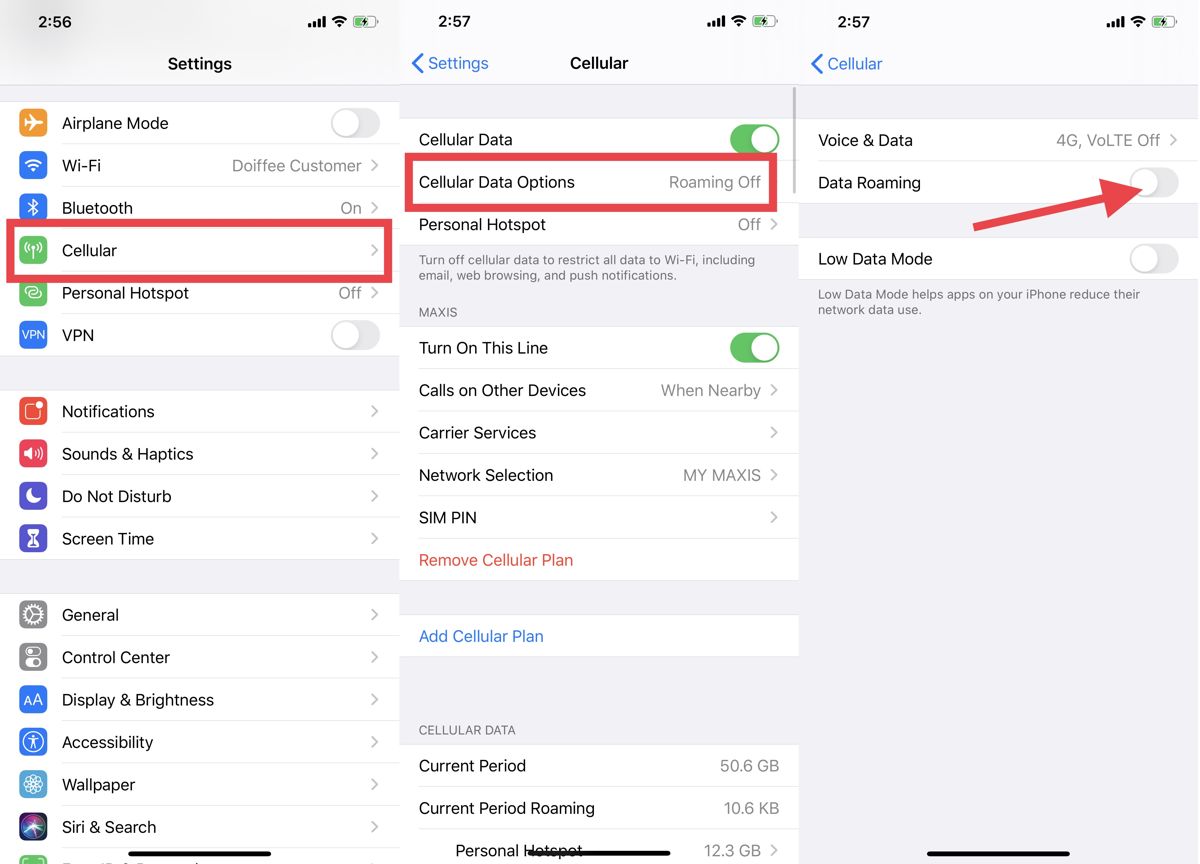 This issue is extremely common among first-time eSIM travelers.
2. Incorrect APN Settings
Some eSIM providers require custom APN settings for mobile data access.
If the APN is:
- missing
- incorrect
- not automatically configured
the phone may connect to the network but fail to route internet traffic properly.
Common symptoms include:
- signal without internet
- apps partially loading
- very slow data speeds
- connection constantly dropping
Always compare your APN configuration with the setup instructions provided after purchasing the eSIM.
3. Your Phone Selected the Wrong SIM for Mobile Data
Dual SIM phones sometimes keep using the home SIM instead of the travel eSIM for internet access.
This commonly happens when travelers:
- keep their home SIM active for OTP codes
- use a travel eSIM for data
If the device prioritizes the wrong line, mobile data may stop working entirely.
On iPhone:
Settings → Cellular → Cellular Data
On Android:
Settings → SIM Manager → Mobile Data
Make sure the travel eSIM is selected as the primary data line.
4. The Network Connection Is Weak or Congested
Sometimes the eSIM technically connects successfully, but the local network quality is too weak for stable internet access.
This is more common in:
- airports
- subways
- remote islands
- mountain areas
- crowded tourist attractions
In some countries, signal bars alone do not guarantee strong data performance.
For example:
- Bali may have weaker coverage outside tourist zones
- European trains often lose stable mobile data between borders
- underground stations in Tokyo may temporarily weaken reception
You can check regional coverage behavior in guides such as:
5. Automatic Network Selection Picked the Wrong Carrier
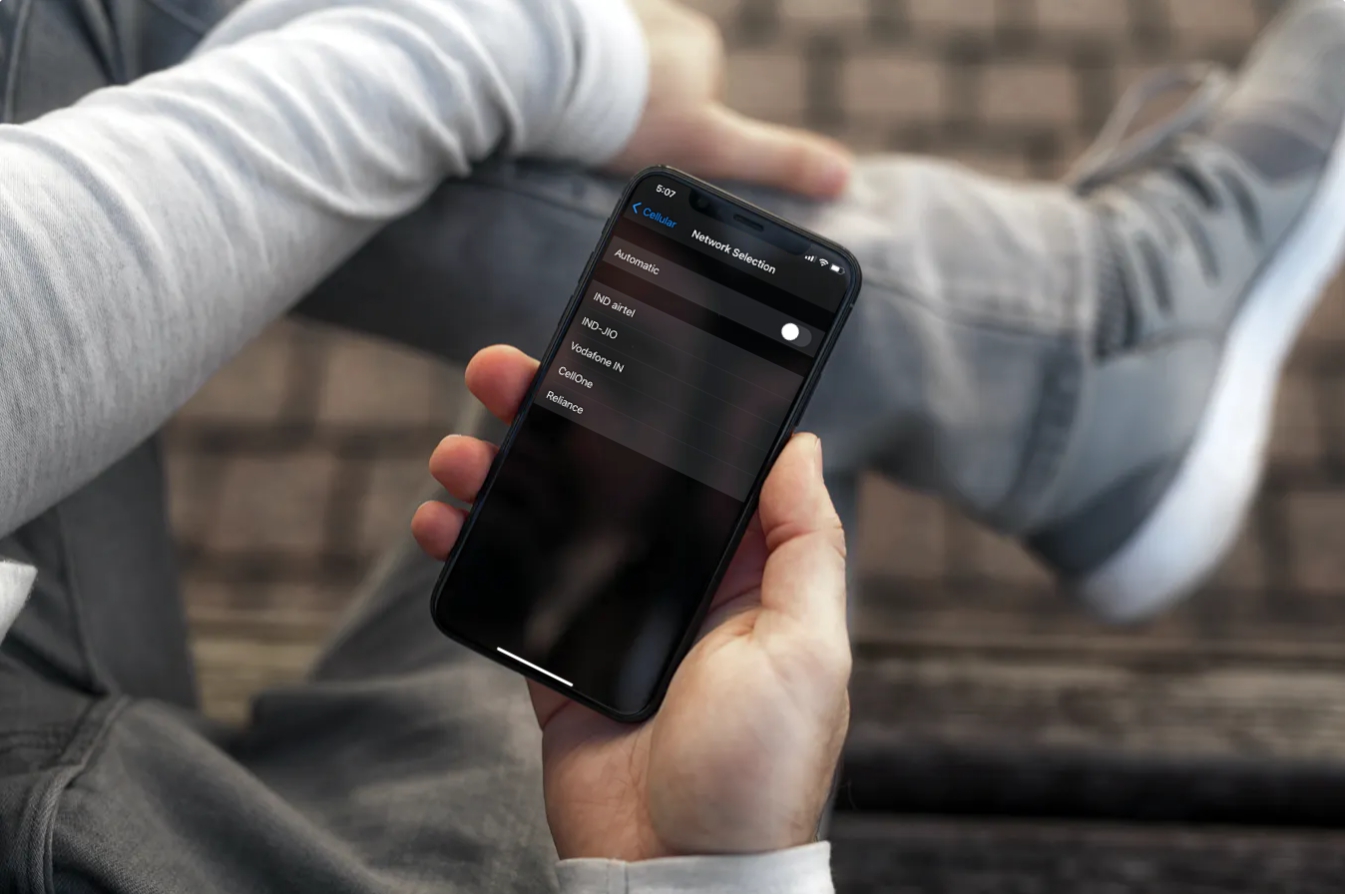
Some travel eSIMs support multiple partner networks in the same country.
Unfortunately, automatic network selection does not always choose the strongest carrier.
The phone may connect to:
- a congested roaming partner
- a slower regional carrier
- a weaker signal network
Manual network selection often improves internet connectivity.
- Disable Automatic Network Selection
- Try alternative carriers manually
- Restart mobile data after switching
6. VPN Apps Are Interfering
VPN applications sometimes block or slow roaming data connections.
This is especially common when:
- using free VPN services
- traveling in restricted countries
- connecting through overloaded VPN servers
VPN interference may cause:
- internet failing to load
- apps timing out
- slow connection speeds
- unstable browsing
Try temporarily disabling the VPN to test the connection.
7. The eSIM Plan Has Expired or Used All Data
Some travelers forget to check whether their eSIM plan is still active.
If the plan:
- expired already
- reached the data limit
- was throttled heavily
the network may still display signal bars even though internet access stops.
This is particularly common with:
- short-term travel plans
- daily capped unlimited plans
- budget roaming packages
You can learn more about estimating travel usage in this guide on how much eSIM data travelers actually need.
8. Airplane Mode Reset Is Needed
Sometimes the phone simply fails to refresh the network connection correctly after arrival.
A quick airplane mode reset often fixes this immediately.
- Enable Airplane Mode
- Wait 20–30 seconds
- Disable Airplane Mode
- Allow the network to reconnect
This forces the device to reconnect to local roaming partners properly.
9. The eSIM Installation Was Incomplete
In some situations, the eSIM profile appears installed successfully but the carrier configuration did not fully activate.
This can happen because of:
- weak WiFi during setup
- interrupted installation
- VPN interference
- QR code activation errors
If installation problems occurred earlier, you may also want to read:
10. The eSIM Provider Is Experiencing Network Issues
Occasionally, the problem comes directly from the provider itself.
Temporary issues may include:
- carrier outages
- roaming partner maintenance
- server-side activation delays
- network congestion during peak travel seasons
If nothing else works:
- restart the device
- reinstall the eSIM if supported
- contact provider support
Quick Troubleshooting Checklist
- Enable Data Roaming
- Verify APN settings
- Select the correct mobile data SIM
- Disable VPN temporarily
- Restart the device
- Toggle airplane mode
- Switch networks manually
- Check remaining data balance
- Move outdoors for stronger signal
Most Common “Connected but No Internet” Causes
| Problem | Most Likely Cause |
|---|---|
| Signal bars but no websites load | Data Roaming disabled |
| 4G/5G visible but apps fail | Incorrect APN settings |
| Slow unstable browsing | Weak roaming coverage |
| Internet suddenly stopped | Expired data plan |
| Connection works after restart | Temporary network registration issue |
If your eSIM loses signal entirely instead of simply failing to load internet, you may also want to read this related guide on eSIM installed but no signal problems.
In most cases, an eSIM connected without internet access is not a serious hardware issue. The problem is usually related to roaming configuration, APN settings, or network selection.
Understanding how travel eSIMs operate internationally can help travelers troubleshoot problems much faster and avoid unnecessary stress during trips abroad.
FAQs
1. Why does my eSIM show signal but no internet?
The most common causes are disabled Data Roaming, incorrect APN settings, weak roaming coverage, or incorrect SIM selection.
2. Should Data Roaming be turned on for travel eSIMs?
Yes. Most international travel eSIMs require Data Roaming to connect through partner networks abroad.
3. Can APN settings stop eSIM internet from working?
Yes. Incorrect or missing APN settings can prevent mobile data from functioning properly.
4. Why does my eSIM connect but apps still do not load?
This may happen because of network congestion, VPN interference, or expired data plans.
5. Can switching networks fix eSIM internet issues?
Yes. Manually selecting another partner carrier often improves connection stability.
6. Does airplane mode help fix eSIM problems?
Yes. Toggling airplane mode forces the phone to reconnect to local roaming networks.