

eSIM Installed But No Signal? Full Troubleshooting Guide
One of the most frustrating situations travelers experience is installing an eSIM successfully but still seeing “No Service,” “Searching,” or zero signal bars after arrival.
In many cases, the eSIM itself is actually working. The real issue is usually related to network settings, roaming configuration, device compatibility, or local carrier connections.
If your eSIM is installed but no signal appears, this guide explains the most common causes and how to fix them quickly on both iPhone and Android devices.
1. Data Roaming Is Disabled
This is probably the most common reason why travel eSIMs show no signal or fail to connect properly.
Unlike traditional local SIM cards, many travel eSIM providers rely on roaming agreements with international partner networks. Because of this, roaming usually needs to stay enabled.
If roaming is disabled:
- the eSIM may appear installed
- signal may remain weak or unavailable
- mobile internet may never connect
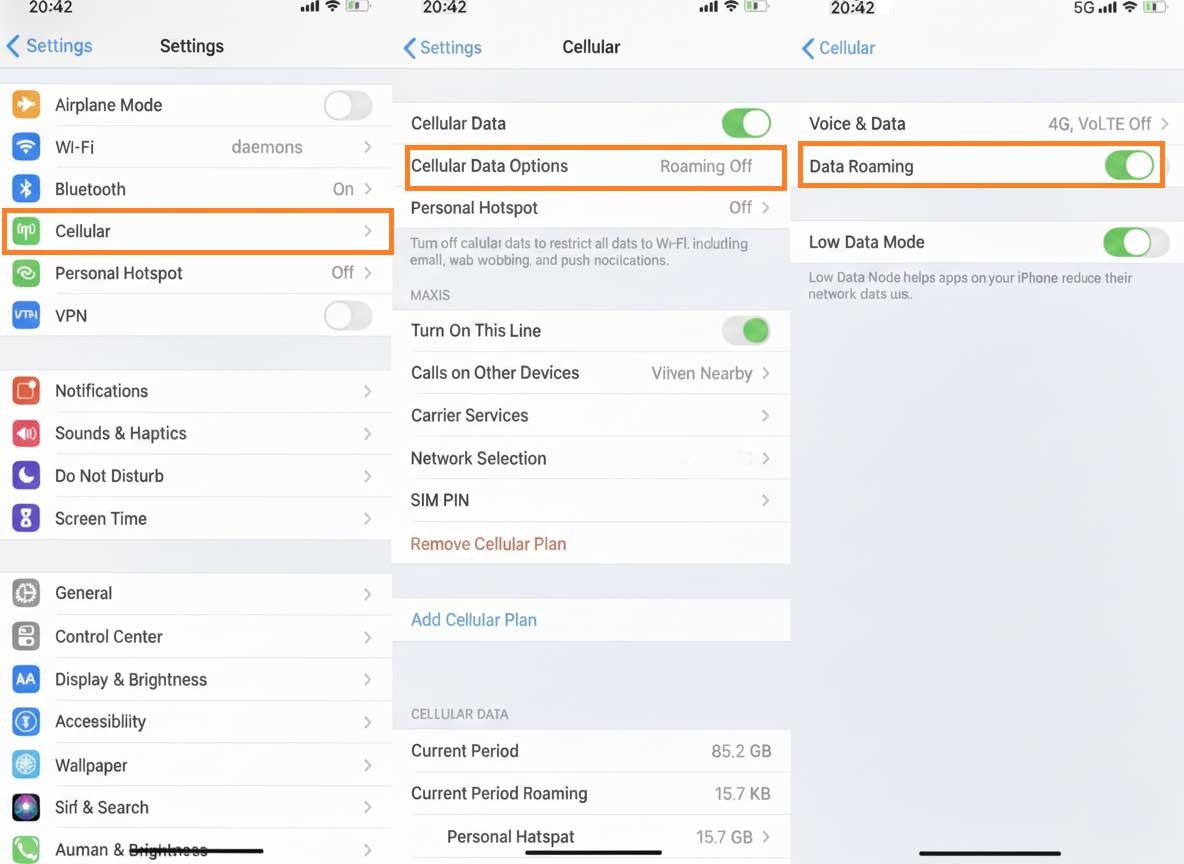
On iPhone:
Settings → Cellular → Your eSIM → Data Roaming ON
On Android:
Settings → Connections → Mobile Networks → Data Roaming ON
Many travelers confuse travel eSIMs with expensive carrier roaming. However, they work differently.
You can also read this comparison of eSIM vs international roaming to understand why roaming settings matter.
2. Your Phone Is Still Using the Physical SIM
Dual SIM phones often create confusion during travel.
The eSIM may already be active, but your device is still trying to use the physical SIM for mobile data.
This can cause:
- no internet access
- signal conflicts
- unexpected roaming charges
- eSIM connection failure
To fix this:
iPhone: Settings → Cellular → Cellular Data → Select eSIM
Android: Settings → SIM Manager → Mobile Data → Choose eSIM
You can still keep your primary SIM active for calls or OTP messages while using the eSIM for data.
3. The eSIM Connected to the Wrong Network
Sometimes the phone automatically connects to a weaker or unsupported network partner.
This happens frequently in:
- Europe multi-country trips
- border regions
- airports
- high-speed train routes
If the automatic network selection fails, try selecting a network manually.
How to Manually Select a Carrier
iPhone:
Settings → Cellular → Network Selection → Turn OFF Automatic
Android:
Settings → Mobile Networks → Network Operators → Search Networks
Then manually test another available carrier.
This issue is more common when using global eSIM plans across multiple countries.
4. Your Phone Is Carrier Locked
Even if an eSIM installs correctly, carrier-locked phones may still refuse to connect to foreign networks.
This is especially common with:
- US contract phones
- carrier-financed devices
- refurbished phones
- older Android models
Typical signs include:
- eSIM stuck on “Searching”
- No Service permanently
- network registration failure
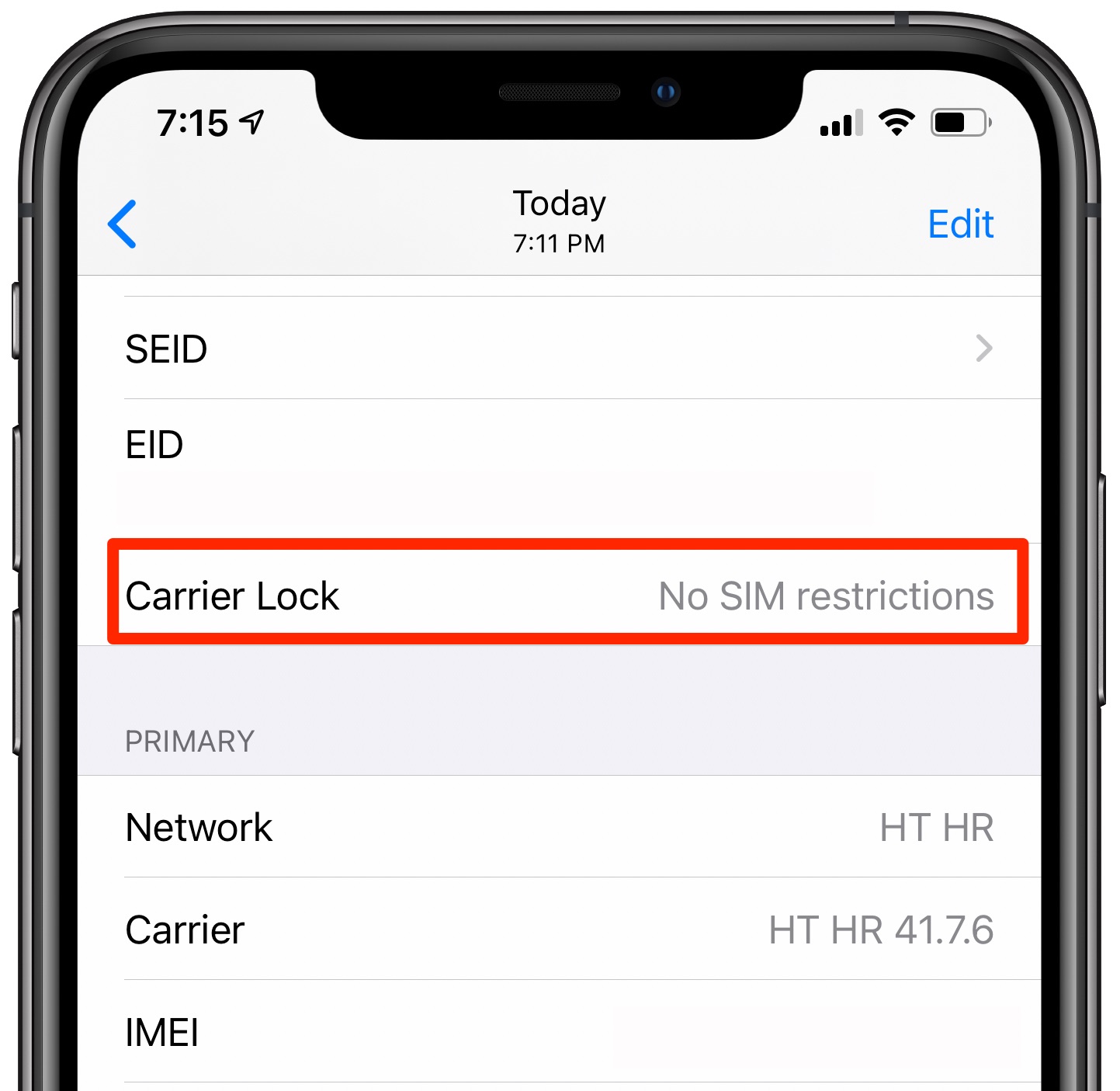
You can check carrier lock status on iPhone here:
Settings → General → About → Carrier Lock
If it says “No SIM Restrictions,” your phone is unlocked.
Related guide: Can eSIM Work on Locked Phones?
5. APN Settings Are Missing
APN settings control how your phone connects to mobile internet networks.
Some eSIM providers configure APN automatically, while others require manual setup.
If the APN is missing or incorrect:
- signal may appear without internet
- apps may fail to load
- connection may feel unstable
| Problem | Possible Cause |
|---|---|
| Signal but no internet | Incorrect APN |
| No connection after landing | Missing APN setup |
| Slow or unstable internet | Wrong APN profile |
Most providers include APN details in the installation email or app instructions.
6. Weak Coverage at Your Current Location
Sometimes the eSIM is working properly — the coverage is simply weak where you are.
This happens more often in:
- underground subway stations
- mountain regions
- rural highways
- small islands
- airport immigration areas
Examples travelers often notice:
- weak underground coverage in Tokyo subway systems
- unstable reception in Bali mountain areas
- signal drops on European train routes
If no signal appears immediately:
- wait a few minutes
- toggle airplane mode
- restart your phone
- move outdoors temporarily
Country-specific coverage differences are especially important in destinations like Indonesia, Japan, and Europe multi-country travel.
7. VPN Apps Are Blocking the Connection
VPNs can sometimes interfere with network registration or mobile routing.
This is particularly common in:
- China
- UAE
- corporate-managed devices
- phones with security profiles installed
If your eSIM shows no signal:
- disable VPN temporarily
- restart the device
- reconnect manually
Some travel eSIMs connect more reliably after the VPN is disabled during the initial network registration process.
8. The eSIM Was Activated Too Early or Expired
Some travelers install their eSIM several days before departure without realizing the validity period starts immediately.
By the time they arrive:
- the plan may already be active
- data may partially expire
- network access may stop unexpectedly
If you are unsure about activation timing, this guide on when to buy an eSIM before travel explains the safest timing strategy.
9. The Device Needs a Simple Restart
It sounds basic, but restarting the phone fixes a surprisingly large number of eSIM issues.
Restarting helps:
- refresh network registration
- reload carrier profiles
- force reconnection to local towers
- clear temporary installation bugs
Many travelers spend hours troubleshooting settings before trying a simple restart.
Quick Checklist If Your eSIM Has No Signal
- Enable Data Roaming
- Select the eSIM for mobile data
- Disable VPN temporarily
- Restart the phone
- Check APN settings
- Try manual network selection
- Move outdoors temporarily
- Verify the phone is unlocked
Most Common eSIM Signal Problems
| Problem | Likely Cause |
|---|---|
| eSIM installed but no bars | Wrong network selection |
| Signal but no internet | APN or roaming issue |
| Searching forever | Carrier lock |
| Works only on WiFi | Data roaming disabled |
| Signal disappears while moving | Weak regional coverage |
| Connection unstable abroad | VPN or roaming conflict |
If your connection still does not work properly, you can also read this complete troubleshooting guide on fixing eSIM issues while traveling.
Most “No Signal” problems are not permanent eSIM failures. In many situations, the solution is as simple as enabling roaming, selecting the correct SIM, or manually changing the carrier network.
Understanding how travel eSIMs connect to international partner networks makes troubleshooting much easier during your trip.
FAQs
1. Why is my eSIM installed but showing no signal?
The most common causes are disabled roaming, incorrect network selection, or carrier lock restrictions.
2. Why does my eSIM show bars but no internet?
This usually happens because of missing APN settings or incorrect mobile data configuration.
3. Should Data Roaming be ON for travel eSIM?
Yes. Most international travel eSIMs require roaming to connect with partner networks abroad.
4. Can VPN apps affect eSIM signal?
Yes. Some VPNs interfere with network registration and mobile routing during activation.
5. Can I use physical SIM and eSIM together?
Yes. Most modern smartphones support dual SIM functionality with one physical SIM and one eSIM.
6. Does restarting the phone really help?
Yes. Restarting often refreshes carrier settings and reconnects the device to the local network.